Managing Participants
This guide covers adding, editing, and managing community members (participants) in OpenZEV.
What is a Participant?
A participant is a member of a ZEV community:
- Owns one or more metering devices (metering points)
- Consumes and/or produces energy within the community
- Receives invoices based on their energy allocation
- Can view their own data and invoices in the portal
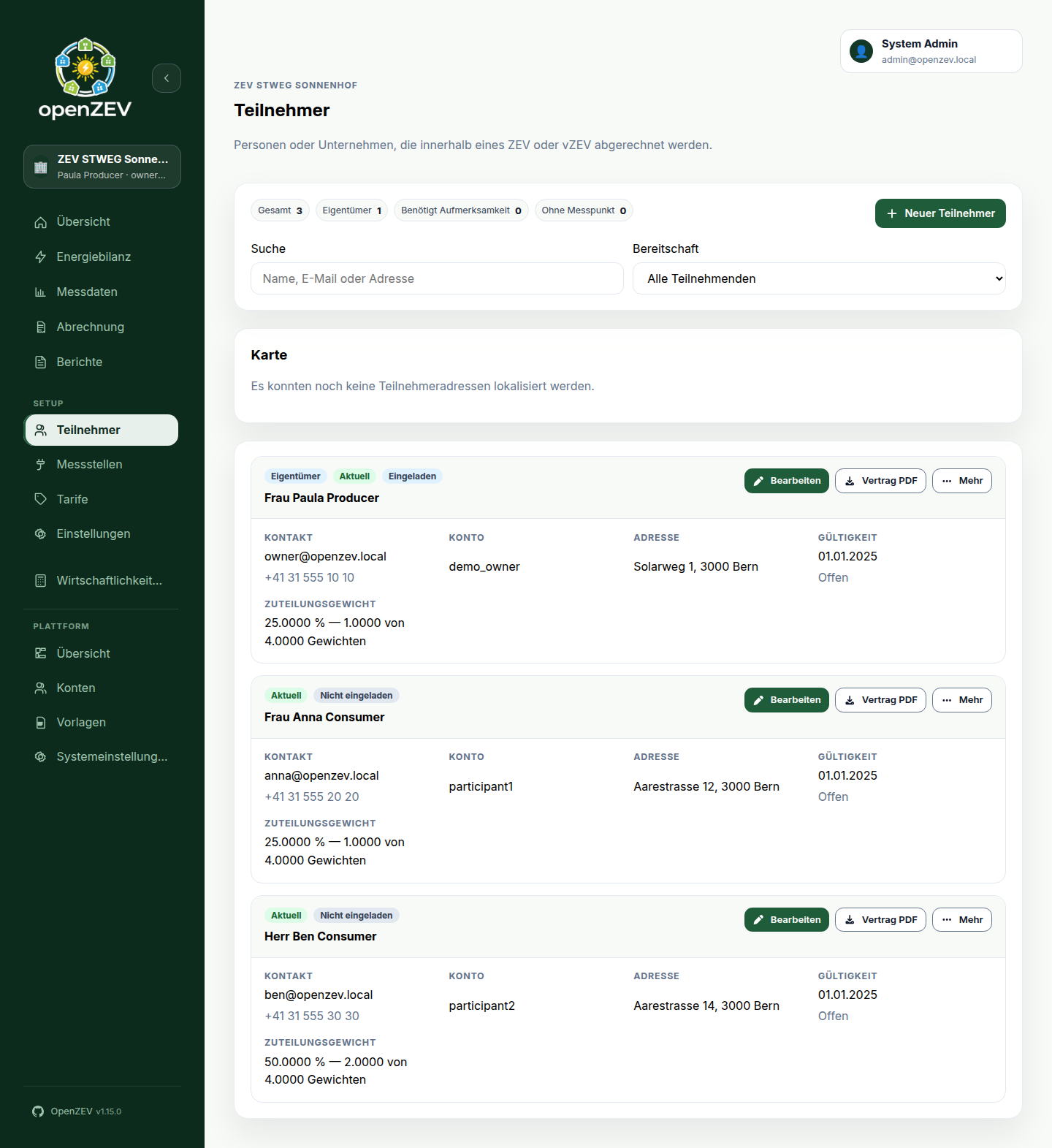
Adding a Participant
ZEV Owners add new participants in Participants.
- Click New Participant
-
Enter participant details:
- Title, First Name and Last Name (first and last name required)
- Email (where onboarding links and invoice emails go)
- Phone (optional)
- Address — address lines, postal code and city (needed on the invoice and for the map)
- Notes (optional, internal)
-
Set Validity Period:
- Valid From: Participant entry date (defaults to today)
- Valid To: Participant exit date (leave empty for ongoing)
Tip: Validity periods ensure participants are only billed during active membership.
-
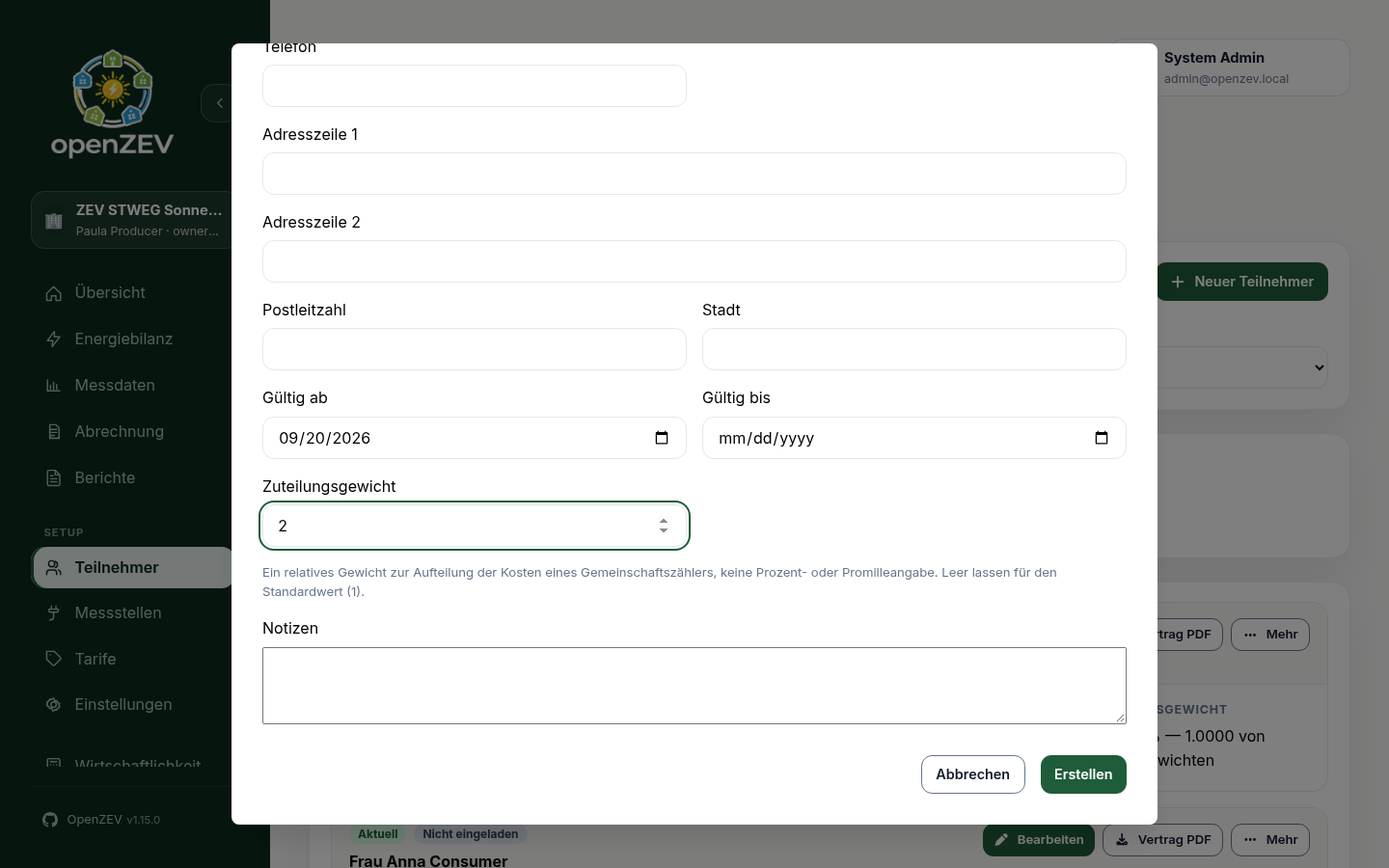
Set Allocation Weight (optional — leave empty for the default
1). See Allocation Weight below. -
Click Save Participant
The participant is added to the list. A card flagged Needs attention is missing an email address, a postal address or a metering point; the Readiness filter narrows the list to those cards.
Participant Account Access
Participants can:
- Sign in through their onboarding link, and afterwards with their email and a password they choose themselves
- View their own consumption and production data
- Download invoices
- Update their account profile
Participants cannot:
- See other participants' data
- Manage ZEV settings
- Create tariffs or invoices
Each participant card shows the Account it is linked to, or No account yet, plus an onboarding status badge (Not invited, Invited, Active, Revoked, Expired). While a link is live — or after it has expired — the card also shows its expiry date beside the badge, so you can see when a dead link died without resending it. Open More on a card to send or copy the participant's onboarding link (which creates the account), or to revoke it. The link stays usable for 30 days and can be reused within that time — copying or resending it hands out the same link, unless it has expired, in which case a fresh one is issued automatically. Once the participant sets their own password, the link is revoked. Administrators can also Link existing — attach a guest or participant account that is not yet linked to anyone — or Unlink the current one. Platform → Accounts lists every account and which communities it belongs to; see Roles and Permissions.
A Participant Forgot Their Password
There is no "forgot password" link on the login page. Send or copy the participant's onboarding link again from More on their card: it signs them in, and they then choose a new password. If their invoices carry the participant QR code, they can also request a sign-in link themselves from the page it opens.
Participation Contract
Contract PDF on a participant's card downloads their participation contract, filled from the ZEV settings (including the contract notes on the Documents & emails tab), the participant's details and the tariffs.
Every contract is kept exactly as issued, with a document number. Downloading again returns the same version while nothing has changed; once the participant's details, the tariffs or the settings change, the next download issues a new numbered version, and the earlier ones stay on record.
Editing Participant Details
- Go to Participants
- Click Edit on the participant's card
- Update fields as needed
- Click Save Participant
Updating Validity Periods
To mark a participant as active/inactive:
- Ongoing membership: Leave Valid To blank
- End membership: Set Valid To to the last day of their invoice period
Important: Changing validity dates affects future invoices only—past invoices remain unchanged.
Allocation Weight
Allocation weight decides how much of a shared cost a participant carries. It is used for:
- Community (common-area) metering points — always
- Shared fees whose split key is set to By allocation weight (see Tariff Configuration)
It is a plain relative number, not a percentage. Weights of 1, 1, 2
mean the third participant carries twice what each of the others does — the
shares work out as 25 % / 25 % / 50 %. Weights of 10, 10, 20 give
exactly the same result. There is no requirement that weights add up to
anything in particular.
Not a Wertquote. The allocation weight is not the legal value quota under Art. 712e ZGB, and OpenZEV does not treat it as one. If your community has agreed to bill common-area costs by value quota, you may enter those figures as weights — but that is your decision, recorded here as a plain number.
The default is 1. Leave the field empty when adding a participant and every
member shares common costs equally — the behaviour you get if you never touch
this setting at all.
Each participant card shows the resulting share, for example:
ALLOCATION WEIGHT
25.0000 % — 1.0000 of 4.0000 weights
The percentage is informational and recomputed from current membership. It changes on its own when somebody joins or leaves, because the total changes.
Choosing weights
Common bases a community might agree on:
| Basis | Example weights |
|---|---|
| Equal split (default) | 1 for everyone |
| Floor area (m²) | 85, 120, 64 |
| Number of rooms | 2.5, 4.5, 3.5 |
| Agreed value quota | 142, 210, 98 |
Use whichever your community's regulations specify. Only one weight per participant is supported — you cannot bill the lift by value quota and the laundry by floor area.
Editing a weight is retroactive on regeneration. Changing a weight does not alter invoices that have already been sent. But if you regenerate a draft invoice for an earlier period, it is recalculated with the new weight. Agree weights before a billing run rather than during one.
Participant Metering Points
Metering points are assigned to participants on the Metering Points page, each assignment with its own validity period. A participant without any metering point is flagged Needs attention. See Metering Points.
Map
The map is off by default, because locating buildings sends participant
addresses to the public OpenStreetMap Nominatim service. An admin turns it on
under Platform → System Settings → Functions (participant_geocoding_enabled).
When it is on, the Participants page shows a small map with each participant's building outlined on OpenStreetMap. It's built from the address fields (street, postal code, city), assuming a Swiss address, and updates automatically whenever a participant's address is added or changed.
- Participants at the same building share a single outline; its popup lists everyone there.
- An address that can't be located (typo, incomplete, or simply not entered yet) is just left off the map — a note below it says how many participants aren't shown. There's no manual pin-placement in this iteration.
- Locating a building can take a short while after saving a new or changed address, since it happens in the background — refresh the page if a just-added participant hasn't appeared yet.
Removing a Participant
When someone leaves the community, end their membership instead of deleting them:
- Go to Participants
- Click Edit on the participant's card
- Set Valid To to the participant's last active date
- Click Save Participant
Past invoices and data remain intact. Invoice periods after Valid To skip the participant.
Warning: Delete (under More) removes the participant and every invoice issued to them, including sent and paid ones. Use it only for a participant created by mistake.
Participant Communication
Onboarding Email
Send onboarding link (under More on the card) emails the participant their onboarding link. Nothing is sent automatically when you add a participant. The email text is an admin-managed template — see Email Configuration.
Invoice Emails
A participant receives an email with the invoice PDF when you send the invoice (status Sent). No email is sent when an invoice is marked paid. How often invoices go out depends on your ZEV's billing interval.
Participant Data Retention
Participant records are kept permanently for:
- Audit trail and history
- Reproducibility of past invoices
- Regulatory compliance
Data Privacy: Only ZEV owners and admins can view participant details. Participants cannot see other members.
Troubleshooting
Participant cannot login
- Check that the participant's email is correct — it is their sign-in name
- Check the onboarding badge on their card: Expired or Revoked links no longer work; send a new one
- For a forgotten password, see above
Participant invoices are wrong
- Check participant validity period (Valid From/To)
- Verify metering points are correctly assigned
- See Metering Analysis to check data quality
Next Steps
- Assign metering points: Metering Points
- Import consumption data: Metering Imports
- Check billing: How Energy Allocation Works