Roles and Permissions
This guide explains user roles and access boundaries in OpenZEV.
User Roles
OpenZEV supports four distinct roles:
| Role | Scope | Typical User | Purpose |
|---|---|---|---|
| Admin | Global system | Platform operator, IT | Full access to all ZEVs, settings, accounts |
| ZEV Owner | Single ZEV (scoped) | Community operator | Manage one or more ZEV communities |
| Participant | Own data only | Community member | View own consumption, download invoices |
| Guest | None until linked | Unlinked account | Stand-by log-in; no community access until linked to a participant |
Note: The guest role is an internal transitional role. It normally has no domain access and is used when an account is not (or no longer) linked to a ZEV or participant.
Admin Role
Admins have unrestricted access to the entire system.
Admin Capabilities
- Account Management: Create, edit, remove user accounts
- User Roles: Assign roles and ZEV scopes to other users
- System Settings: regional date formats, VAT rate configuration, feature flags, and OAuth providers
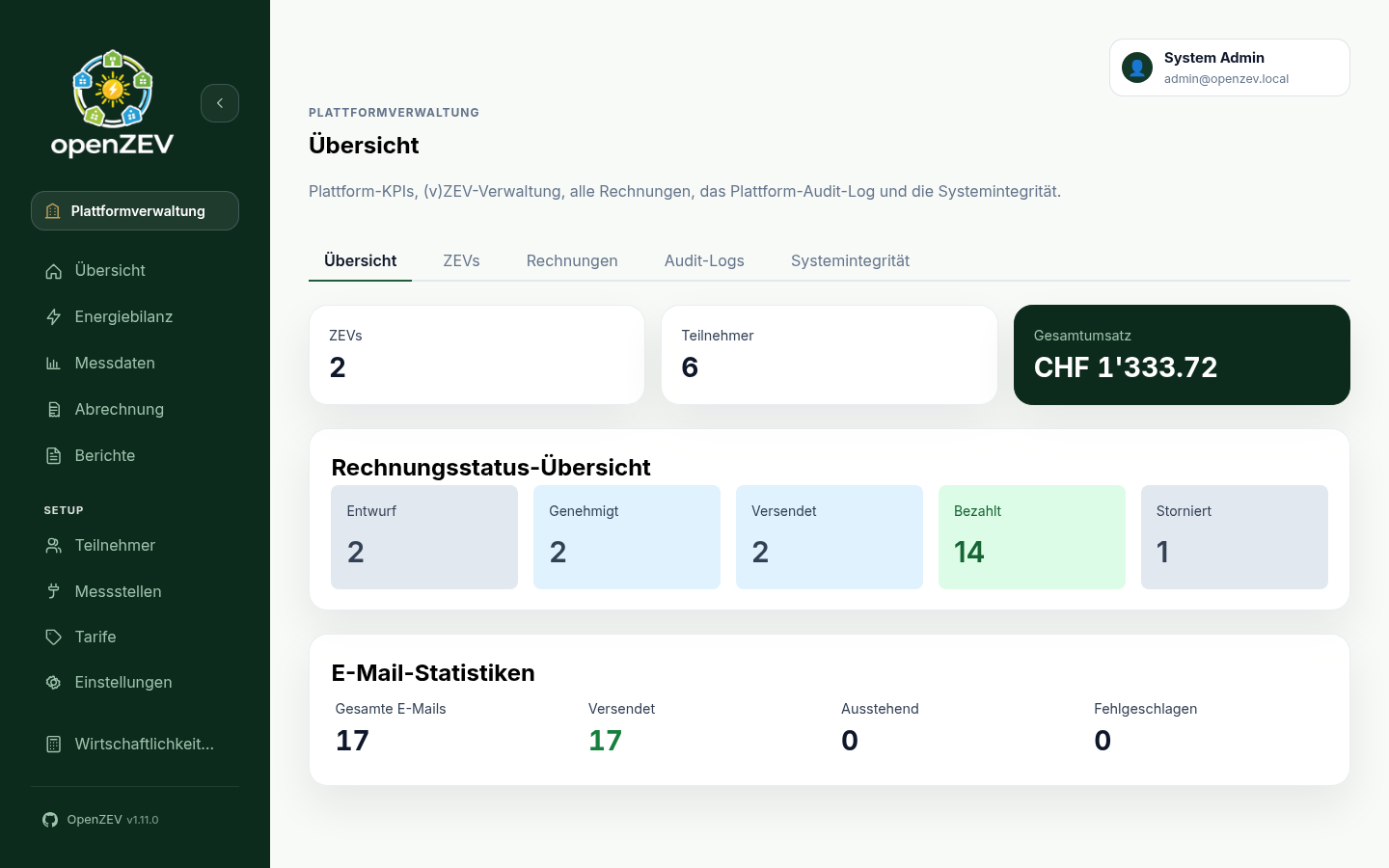
- Overview hub: KPIs, multi-ZEV oversight, all invoices, the platform audit log, and system health
- Accounts: user management and platform-wide API keys
- Templates: PDF invoice/contract/statement templates and system-wide email defaults
Platform Overview
Accessible via Platform → Overview:
- System health and status
- Account count and active users
- Total invoices generated
- Email delivery metrics
- Recent alerts and issues
Who Should Be Admin?
- Platform owner or operator
- IT/system administrator
- Finance/compliance officer (for audit access)
Important: Give admin access sparingly. It grants unrestricted power.
ZEV Owner Role
ZEV Owners manage one or more energy communities (ZEVs).
ZEV Owner Capabilities
Per assigned ZEV:
- Manage participants (add, edit, view)
- Configure metering points
- Import metering data
- View data quality reports
- Configure tariffs
- Generate and approve invoices
- Send invoices to participants
- Track email delivery
- Customize email templates
- Configure ZEV settings (billing interval, VAT number, etc.)
- Turn participant invoice access on or off, and revoke a printed access link
Restrictions:
- Cannot access other ZEVs (unless assigned to multiple)
- Cannot access admin settings
- Cannot manage global user accounts
- Cannot view other ZEV's metering data or invoices
ZEV Scope
A ZEV Owner is scoped to one or more ZEVs:
- Single ZEV: Owner manages one community only
- Multiple ZEVs: Owner can switch between assigned communities via ZEV selector
- Each ZEV is isolated—data from one ZEV is not visible in another
Who Should Be ZEV Owner?
- Community president or board representative
- Energy manager for a specific community
- Finance officer responsible for invoicing
- Metering and tariff specialist
Participant Role
Participants are community members with read-only access to their own data.
Participant Capabilities
The participant sidebar shows Dashboard, My invoices, and Annual statement; own consumption charts and trends stay reachable through the direct /metering/chart route.
- Dashboard: View own energy consumption/production overview
- My invoices: View and download own invoices (read-only; shows invoices even before a PDF exists)
- Annual statement: View their own annual statement and tax overview
- Metering Data: Direct route to own consumption charts and trends
- Account Profile: Update personal information
Participant Restrictions
- Cannot see other participants' data
- Cannot see metering data from other ZEVs
- Cannot modify tariffs, metering points, or settings
- Cannot generate or approve invoices
- Cannot access admin features
Who Are Participants?
- Household members with metering points
- Small businesses with energy meters
- Anyone with meter(s) in a ZEV community
Reaching a Participant Without an Account
Participants do not have to hold an account to see their own bill. If the ZEV has participant invoice access switched on, the QR code printed on an invoice opens that one invoice — no username, no password, no session.
This is not a role. Whoever holds the printed invoice can open the page, and the page is limited to what that sheet of paper already shows: the total, whether it is paid, the line items, the consumption figures and the charts printed on the same insights page. It cannot reach another invoice, and it cannot change anything.
From there, Send me a sign-in link emails a one-time link to the address on file, which does start a normal participant session with the ordinary participant scoping above. The requester never names the destination address — the invoice identifies who they are — so there is no way to use it to find out whether an address has an account.
A ZEV owner or admin can revoke any printed link; see Invoice Management → Participant access links.
Guest Role
A Guest is a log-in account that is not currently linked to a participant. It has no access to a ZEV's data until an admin links it to a participant.
- How a Guest is created: when an admin unlinks an account from a
participant, that account's role becomes
guest. - Re-linking: a guest account can be linked to a participant again by an admin (same as a participant account).
- Restrictions: guests cannot manage communities or settings, and cannot be impersonated or impersonate others.
Access Control Matrix
| Feature | Admin | ZEV Owner | Participant |
|---|---|---|---|
| Participants | View all | View own ZEV | View self |
| Metering Points | View all | View own ZEV | View own meters |
| Metering Data | View all | View own ZEV | View own readings |
| Tariffs | View all | Create/edit own ZEV | View only |
| Invoices | View all | Create own ZEV | View own only |
| Email Templates | Manage defaults | Customize own ZEV | — |
| Settings | Global settings | Own ZEV settings | Account profile |
| Admin Panel | Full access | — | — |
Note: Guest accounts have no access in any column above until they are linked to a participant, after which they follow the Participant rules.
Assigning Roles
Only Admins can assign roles to other users.
The Accounts list
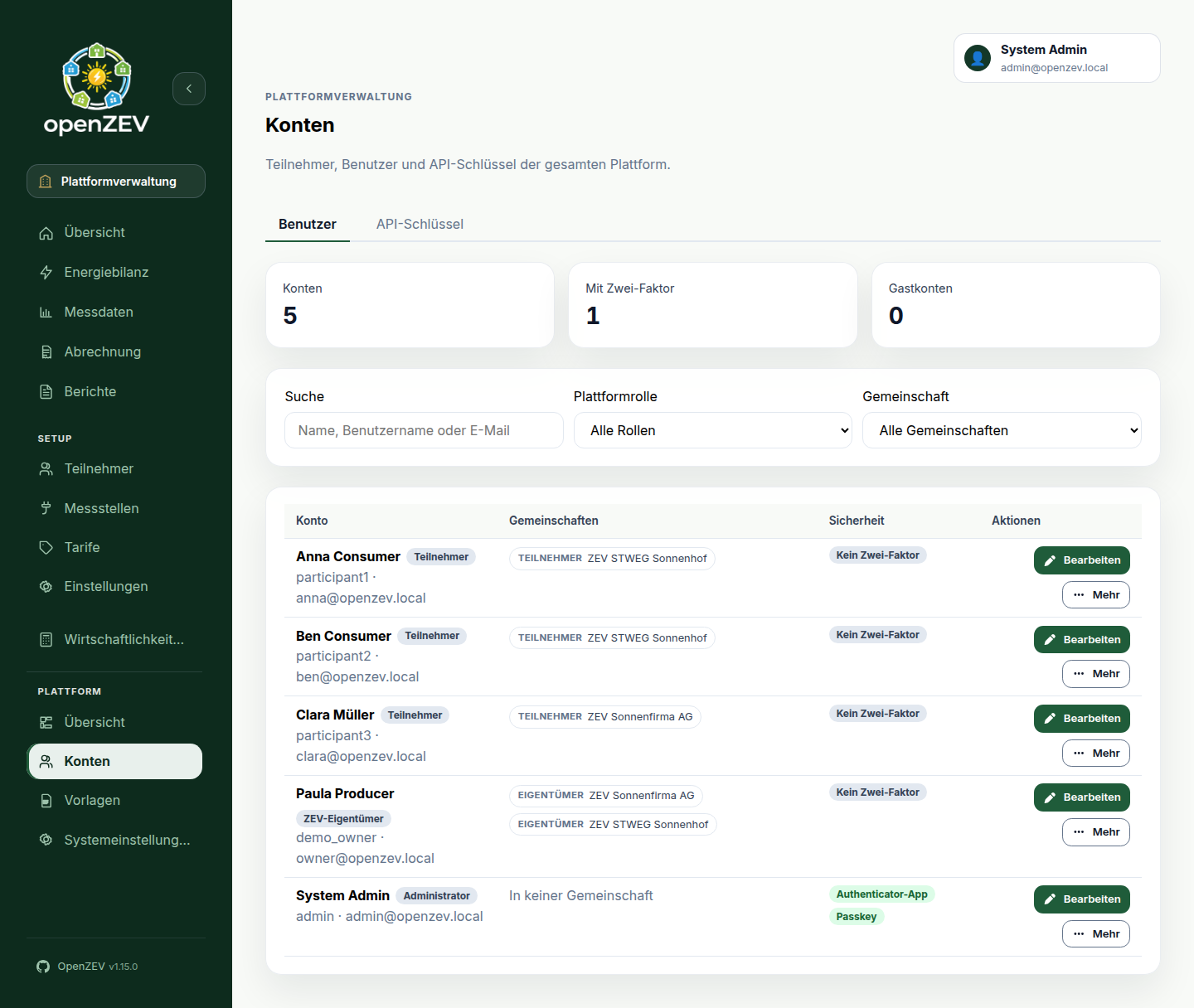
Platform → Accounts → Users lists every account on the platform, one row each:
- Account — name, username, email and the account's platform role.
- Communities — one chip per community the account belongs to, marked Owner or Participant. An account that belongs to several communities still has a single row. Click a chip to open that community's Participants page.
- Security — which second factors the account has (authenticator app, passkey), or No two-factor; whether it is still within its grace period or overdue, for an account the two-factor policy names (see below); and when it last signed in, or Never signed in.
Use Search, Platform role, Community and Two-factor to narrow the list — the community filter finds everyone who is an owner or participant there, and the two-factor filter narrows to accounts that still need to set it up. The Never signed in stat at the top counts accounts nobody has ever signed into — useful for spotting a stale invitation or an account that can be cleaned up.
Platform role vs. community membership. The platform role (Admin, ZEV Owner, Participant, Guest) belongs to the account and applies in every community. Which communities an account belongs to is set on each community's Participants page, not here.
Change an Account's Role
- Go to Platform → Accounts → Users
- Click Edit on the account
- Change the Platform role (and name or email if needed)
- Click Save account
Changes take effect immediately. You cannot change your own role.
Create a New Account
Click New account on Platform → Accounts → Users for an account that is not tied to any community — a second administrator, a service account, or any account you want ready before it is needed. Enter a username, email, first and last name, and the platform role, then click Create account.
There is no password field: OpenZEV generates one and shows it once, with a Copy password button — share it with the account holder however you normally would. They set their own password the first time they sign in.
To create an account for a specific participant, use the community's Participants page instead — see below.
Give a Participant an Account
Accounts are attached to participants from the community that the participant belongs to:
- Switch to the community and open Participants
- On the participant's card, open More
- Choose Send onboarding link or Copy onboarding link (creates the account and gives the participant a sign-in link), or — as an admin — Link existing to attach a guest or participant account that is not yet linked
- To detach an account again, choose Unlink (it becomes a Guest account)
Other Account Actions
Open More on an account row for:
- Impersonate — view the platform as a participant or owner (never an admin).
- Reset two-factor — removes the account's passkeys, authenticator app and recovery codes, so someone locked out can sign in with their password again.
- View activity — opens the platform audit log filtered to this account's own actions.
- Sign out everywhere — ends every session the account holds, on every browser and device, so it has to sign in again. Use it when you suspect someone else has access. It is recorded in the audit log and is not offered on your own row (use Sign out other devices on your account page).
- Deactivate — the account can no longer sign in, and every session it holds ends immediately. Its data and history are kept, and you can Activate it again later. Not offered on your own row: OpenZEV refuses to let you deactivate yourself, since it would sign you out with no way back in except another administrator.
- Delete — only available for accounts that do not belong to a community. Unlink the account from its participant first; an owner's account cannot be deleted while it owns a community.
Data Privacy and Scoping
OpenZEV enforces data boundaries:
Participant Privacy
- Participants can only view their own consumption and invoices
- They cannot see other participants' data in the same ZEV
- API access is also scoped—a participant token can only fetch own data
ZEV Isolation
- ZEV Owners assigned to ZEV A cannot see ZEV B's data
- Tariffs, metering points, and invoices are entirely isolated by ZEV
- Admins can view all ZEVs but typically delegate operations to ZEV Owners
Audit Trail
Security-relevant and billing-relevant user actions are logged:
- Who did what (action)
- When (timestamp)
- What changed (old → new values)
Audit logs are visible to admins (all events, Platform → Overview → Audit log) and to ZEV owners for their own communities (scoped events, Setup → Settings → Audit log).
Best Practices
Principle of Least Privilege:
- Assign the minimum role needed for the job
- Participants should not be admins
- Limit admin accounts to platform operators
Separate Roles:
- Use different user accounts for different roles
- Don't share admin accounts between people
- Create audit trail by attributing actions to individuals
Regular Reviews:
- Periodically review who has access to what
- Remove access when people leave the organization
- Audit role assignments for compliance
Account Security:
- Users should use strong passwords
- Turn on two-factor authentication under My Account → Security (see below)
- Don't write passwords down
Two-Factor Authentication
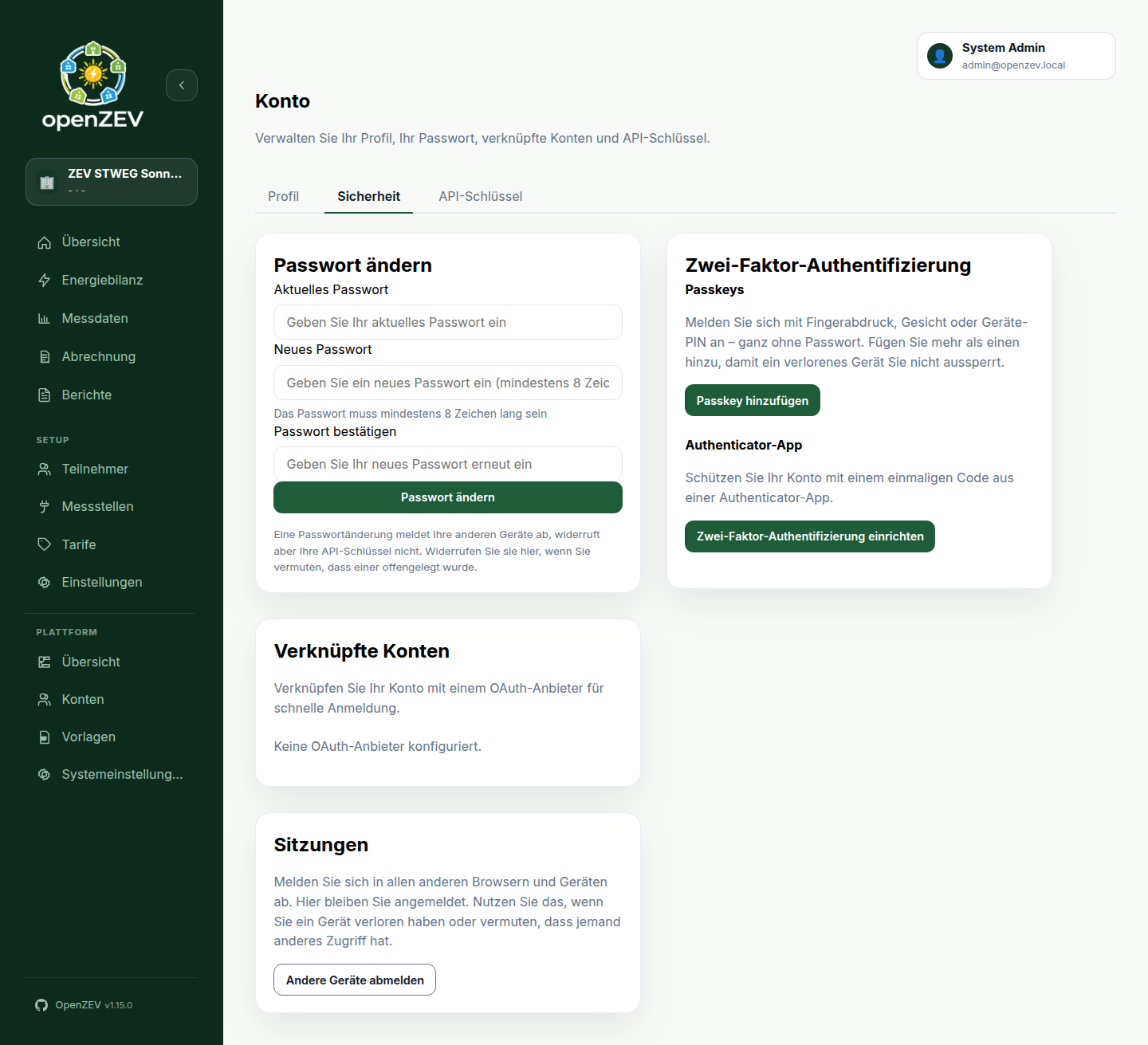
Every user can protect their account with a passkey, an authenticator app, or both. Set them up under My Account → Security → Two-Factor Authentication.
Passkeys (no password needed)
A passkey lets you sign in with your fingerprint, face or device PIN — no password. It is phishing-resistant: it only works on the real OpenZEV address.
- Click Add a passkey, give it a name (for example "MacBook Touch ID"), and confirm on your device
- Add a second one on another device, so a lost phone does not lock you out
- Save the recovery codes shown once when you add your first factor
To sign in, click Sign in with a passkey on the login page. The button only appears in browsers that support passkeys.
Authenticator app
- Click Set up two-factor authentication, scan the QR code with your authenticator app (Google Authenticator, Aegis, 1Password, …) or type the key in by hand
- Enter the 6-digit code the app shows to confirm
- Save the ten recovery codes if you have no other factor yet — each works a single time
Afterwards, signing in with your password asks for the 6-digit code as a second step. Use Use a recovery code instead if you don't have your phone. The same code is asked when you sign in through an emailed invoice link or onboarding link. Signing in through an external identity provider is unaffected unless the administrator requires the provider to assert a second factor.
Note: Adding a passkey protects your password too. Signing in with your password (or an emailed link) then asks for a second step: a recovery code if you only have a passkey, or the 6-digit code if you also have an authenticator app. The login page offers Sign in with a passkey instead at that point. Keep your recovery codes somewhere safe — they are what gets you in with a password if you can't use your passkey.
Requiring it for a role (administrators)
Under Platform → System Settings → Security, choose which roles must use two-factor authentication and set a grace period in days. Users of those roles see a reminder on their account page and a set-up screen they can postpone until the grace period ends. The period counts from the later of the account's creation and the day you last changed the policy, so switching it on never locks anyone out immediately. A user whose role requires it cannot remove their last factor.
To see who has not enrolled yet, go to Platform → Accounts → Users: an account the policy names
gets a badge in the Security column — "2FA required · due <date>" during the grace period, "2FA
overdue" once it has passed — and the Two-factor filter narrows the list to exactly those
accounts. The "Needs two-factor" stat at the top of the page counts them.
Once the grace period ends, an account with no factor is also refused any change it tries to make through the API, not only in the web app — so this is enforced, not just suggested. Reading data is never affected, and neither is an API key: a key cannot complete the enrolment ceremony this policy pushes someone toward, so it is a separate credential this policy does not reach. An account whose day-to-day access is entirely through an API key it minted before the policy applied to it is therefore not forced to enrol by this alone.
Locked out?
On the second step of a password sign-in, enter one of your recovery codes. If you have lost your devices and your recovery codes, ask an administrator: Platform → Accounts → Users → More → Reset two-factor removes every passkey, the authenticator app and all recovery codes for that user, and is recorded in the audit log. An administrator can never see or recover your secrets, and cannot set up a factor on your behalf.
The server needs an encryption key (MFA_ENCRYPTION_KEYS) before authenticator apps can be enrolled
or a requirement can be set, and the passkey domain settings (WEBAUTHN_RP_ID, WEBAUTHN_ORIGIN)
must match the address users open OpenZEV on. See backend/.env.example and the Helm chart README.
Email Address and Sessions
Changing your email address
Your email address is what you sign in with and where sign-in links are sent, so changing it takes a few extra steps. Under My Account → Profile → Email address:
- Click Change email, enter the new address and your current password
- Open the confirmation link OpenZEV sends to the new address (valid for 24 hours)
- Sign in again with the new address — the change signs you out everywhere
The old address is emailed afterwards, so a change you did not make does not go unnoticed. The link works once, and stops working if your password or address changes before you use it.
Accounts that have no password — participants, who sign in with emailed links, and accounts that only use an external identity provider — cannot do this themselves. For participants the address is maintained by the community owner on the participant record; an administrator can change any account's address under Platform → Accounts → Edit.
Signing out other devices
Under My Account → Security → Sessions, Sign out other devices ends every session except the one you are using. Do it if you lost a device or suspect someone else has access. There is no list of individual devices — the action always covers all of them.
OpenZEV also emails you whenever how your account is secured changes — a passkey or authenticator app added or removed, recovery codes regenerated, your password changed, or an administrator resetting your two-factor authentication or signing you out everywhere. It always goes to your own address, says what happened and when, and cannot be turned off — think of it as a smoke detector for your account. If one of these arrives and you did not do it, change your password and check with your administrator.
Sessions on other devices also end automatically when you:
- change your password (you stay signed in on the device you used),
- confirm an email change, or
- have your two-factor authentication reset by an administrator, or your account deactivated.
Logout in the user menu signs the account out on every device, including the one you are using — you will have to sign back in everywhere. API keys are separate credentials and stay valid — see API keys.
Multi-ZEV Setups
If operating multiple communities:
Admin perspective:
- Can oversee all ZEVs
- Can assign ZEV Owners to specific communities
- Can monitor cross-ZEV metrics and KPIs
ZEV Owner perspective:
- Use the ZEV switcher (sidebar top) to switch between assigned ZEVs
- Each ZEV has isolated data
- Can be assigned to manage 1 or many ZEVs
Troubleshooting
"Cannot access [feature]" (permission error)
Ask an admin to check your account's Platform role and communities under Platform → Accounts → Users. If the role is wrong, they can change it there.
"Cannot see other ZEVs"
Expected behavior: ZEV Owners are scoped to the ZEVs they own.
If you need access: ask an admin to make you the owner of that ZEV (Platform → Overview → ZEVs).
"User cannot login"
Possible causes:
- The onboarding link was never used, has expired, or was revoked
- User account deactivated
- Password forgotten — there is no self-service password reset
Fix:
- Check the account under Platform → Accounts → Users: is it active, and has it ever signed in?
- Participant: the community owner sends or copies the onboarding link again from the participant's card (More). It signs them in, and they choose a new password.
-
Owner or admin who forgot their password: someone with server access sets a new one on the command line (the user then signs in with it):
docker compose exec backend python manage.py changepassword <username>The username is shown in the Account column of the accounts list.
-
Locked out by two-factor: see Locked out?
Next Steps
- User management: Admin controls at Platform → Accounts
- ZEV settings: ZEV Setup and Configuration
- Participant management: Managing Participants